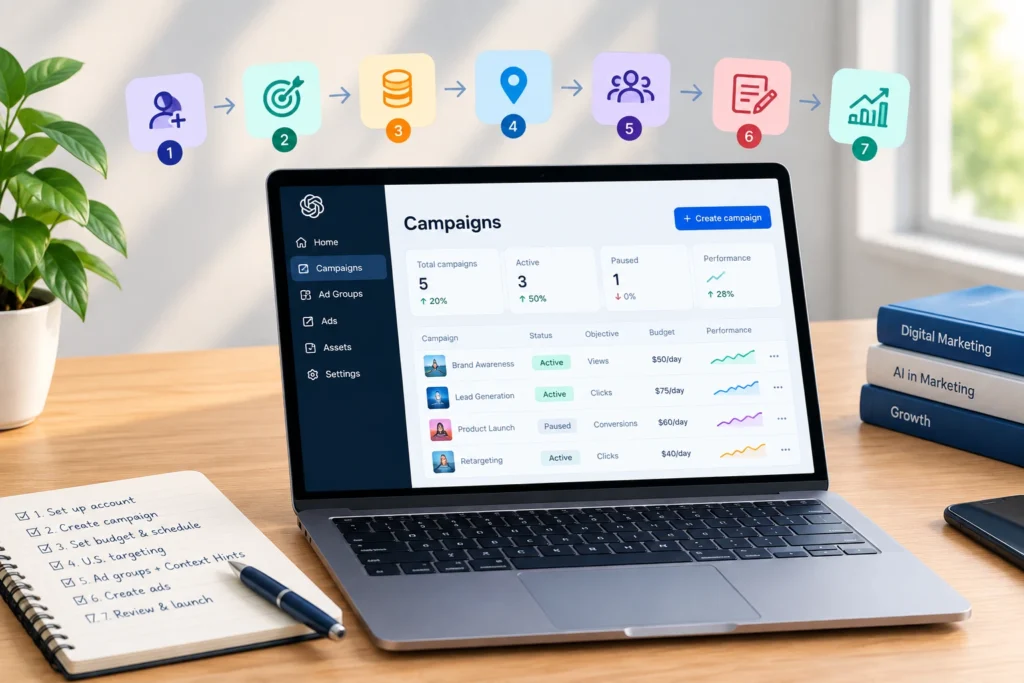
Launching your first ChatGPT Ads Campaign can feel a little like setting up a new shop in a new neighbourhood.
You know what you are selling, you know who you want to reach, but you still have to figure out where to put your sign, what message will make people stop, and which path would lead them to your business.
That’s where the Ads Manager steps in.
Your campaign objective sets the direction, your budget determines how much you’re willing to put behind it. Ad groups organize different customer needs, while context hints help provide additional context about when your offer may be relevant. Your ad and landing page then have to turn that opportunity into a useful next step for the customer.
Get those pieces working together, and you have more than a campaign that is simply “set-up”, you have a campaign built with purpose.
In this step-to-step guide, you’ll learn how to create your first ChatGPT Ads Campaign using OpenAI Ads Manager Beta, including ad set-up, campaign objectives, U.S. targeting budgets, ad groups, Context Hints, ad creative, landing page, tracking, review, launch and performance monitoring.
If you’re new to ChatGPT advertising, start with our complete guide to ChatGPT Ads and Ads Manager first. It covers how ChatGPT Ads work, who can see them, pricing, privacy and the broader ad platform.
Let’s build your first campaign from scratch together.
Please note that OpenAI Ads Manager is still under development, and any information about the available features might change over time. Before starting your advertising campaign, check the current features available in your Ads Manager.
Table of Contents
What Is a ChatGPT Ads Campaign?
A ChatGPT Ads campaign represents the entire system being used in order to market a business through ChatGPT using OpenAI Ads Manager Beta.
OpenAI has organized its campaigns into three hierarchical levels:
| Level | What it controls |
| Campaign | Objective, budget, dates, targeting and other campaign-level settings |
| Ad Group | A specific product, service, theme or customer need, plus content hints |
| Ad | The title, copy, image and landing page users see |
The significance of the hierarchy structure is that each level is responsible for its particular role. For instance, the campaign needs to be consistent with the organizational goal while the ad groups may vary depending on the consumer or the message to be sent.
Campaign creation is done with OpenAI through a guided process where the bulk upload capability can be used for the supported types of campaigns.
Before You Create Your First ChatGPT Ads Campaign
Before opening Ads Manager, make sure that you have the following ready:
- Business advertiser account that qualifies to access the platform
- Business name and website
- Brand logo
- Business information
- Billing information and payment method
- Campaign objective
- U.S. targeting specifications, if necessary
- Budget for your campaign
- Dates of start and finish
- Themes for ad groups
- Context Hints
- Titles and copy for ads
- Landing pages that are relevant
- Images
- UTM tracking parameters
- conversion tracking, when considering optimization for conversions
According to OpenAI, the setting up of an advertising account includes business details, account details, verification, billing, and optional invitation for team members. The implementation of campaigns is dependent on the successful completion of all account setup requirements.
How to Create Your First ChatGPT Ads Campaign
Step 1: Set Up Your OpenAI Ads Manager Account
The initial step involves setting up your advertiser account.
Login to the OpenAI Ads Manager Beta and enter the OpenAI account linked to your company email address, or create a new account if you don’t have one yet.
You will have to go through the advertiser onboarding and verification procedure in order to access the platform.
Add your business information
Complete the following information requested for your advertising account, which can include:
- Name of Business
- Website
- Industry
- Country
- Currency
- Time zone
- Brand logo
Ensure that the name and logo for your company are correct. The account data must be consistent with your business representation within the advertising account.
Set up billing
Following that, provide the billing details and payment mode.
Ensure that the billing profile is complete prior to running the campaign. This is because any problem regarding billing will make the campaign not run.
In case you are working with a team, you can also invite more users to join the advertiser account.
Step 2: Create Your Campaign and Choose the Objective
Once your account is ready, go ahead and make a campaign in Ads Manager.
The campaign creation process will help you create your campaign and set up its basic configurations.
Give your campaign a clear name
Use a naming system that makes the campaign easy to identify later.
For example:
CRM | Lead Generation | U.S. | Q4 2026
A clear naming system is particularly valuable when you have several campaigns working at the same time.
Choose your campaign objective
OpenAI currently provides objectives for campaigns such as:
- Views
- Clicks
- Conversions
Your objective should align with your actual desired outcome of your campaign.
Views are built on impressions and are CPM priced.
Clicks are built on valid clicks and are CPC priced.
Conversions optimize on an eligible conversion action. Conversion campaigns may be billed on the basis of clicks or impressions instead of individual conversions.
Select carefully since once the campaign is developed, the objective will not be changed. If you have to change the objective for some reason, then you have to develop another campaign.
Think about the goal before choosing
It does not necessarily mean that one should go for Conversions simply because they are good.
In case awareness is what you seek in the first place, then Views could be a better option.
When it comes to getting qualified traffic to your site, Clicks could prove to be the right choice.
However, in case you have the conversion tracking up and running and wish to optimize towards a conversion event, Conversions would suit your campaign well.
Step 3: Set Your Budget, Schedule, and U.S. Targeting
Having selected your goal, you can now determine the amount of budgeting you would like to allocate, time of your campaign, and where your ads will be placed.
Set your budget
At the moment, the minimum daily budget on OpenAI for USD accounts is at $25 USD.
You may select from either campaign-level or daily budgeting, depending on which option is provided by the platform.
For first-time advertisers, the use of daily budgets is recommended due to the ability to evaluate the efficiency of your campaigns before moving to a bigger campaign-level budget.
Please note that daily budgets refer to averages over a span of seven days.
Choose your campaign dates
Set your starting date and, if needed, your ending date as well.
However, be sure not to keep your window too short for analyzing the effectiveness of your campaign.
You may also stop or modify your campaign depending on your observations.
Select your U.S. location
For a U.S.-focused campaign, clearly select the United States as your target country.
Simply excluding other countries does not automatically mean your campaign is U.S.-only.
There are certain qualifications that apply to advertiser accounts that are new to self-service. Your advertiser account will first be allowed to advertise within your home country only before meeting certain qualifications for other countries.
Choose your platforms
Based on how your campaign is configured, Ads Manager may allow you to choose from platforms like:
- Android app
- Android web
- Desktop web
- iOS app
- iOS web
Do not go for platforms just because there are more available to you.
Consider where your customers are more likely to come across your ad and where your landing page will be most effective.
Step 4: Build Your Ad Groups and Add Context Hints
This is when you begin to define your campaign.
Rather than combining all the messages and customer needs into one massive ad group, organize the campaign according to theme, product/service, or customer needs.
Think about customer needs
For example, if you are marketing CRM software, the ad groups could be structured depending on customer scenarios:
- Small businesses managing leads
- Sales team tracking pipelines
- Businesses trying to improve customer follow-ups
It is not about making many ad groups just to have more.
Each one of those ad groups must have its own purpose.
Create your ad groups
Name each ad group with a suitable title to reflect what it stands for.
Add the appropriate advertisements to this ad group.
The use of several ads in an ad group allows you to experiment with different messages without changing the basic requirement of the consumer.
Add Context Hints
Context Hints give extra information to OpenAI about your product, service, or need. Context Hints will help OpenAI determine whether your ad could be relevant.
They are not regular keywords or targeting criteria; adding a Context Hint doesn’t mean that your ad will definitely show up for a specific conversation or audience.
Describe your Context Hints clearly and precisely to describe what you have and who it is intended for.
For example, instead of:
“CRM software”
A more useful Context Hint could be:
CRM software for small businesses that need organize customer leads, sales pipelines and follow-ups.
The objective is to offer relevant context instead of just mentioning the keywords.
To understand the proper way to write Context Hints along with examples, check out our step-by-step guide on How to Write ChatGPT Ads Context Hints.
Ensure that your Context Hints are always in sync with the ad group’s theme or requirement.
Step 5: Create Your Ads and Connect the Right Landing Page
Now comes the part where you make those ads for ChatGPT users to see.
Each ad can include elements such as:
- Title
- Copy
- Image
- Landing page
Write clear ad copy
Your title must efficiently communicate the importance of your offer.
Your copy should provide additional information rather than just rehashing your title.
Focus on:
- Benefits
- Features
- Use cases
- Customer needs
- A clear next step
You may make several versions of the same product offering in order to give yourself different messaging options.
Make sure that these versions are sufficiently different rather than varying just by a few words.
Choose a relevant image
Your image has to fit the message conveyed by the ad.Do not use overly complex images which will confuse users.
It is always better to use a simple yet relevant image.
Choose the right landing page
Not all visitors should be directed to your home page by default.If your advertisement is for a certain product, service, collection, or information, take the user to the relevant page.
Think about the journey:
Context → Ad → Landing Page
The promise being made through the ad should be clear on the landing page that the user will land upon.
For exapmle, if the advertisement is about CRM software for small businesses, then it is imperative that the landing page makes things clear to them.
Add UTM tracking
When you use any analytics tool, include the UTM parameters on your landing page link itself.This will assist you in determining the traffic originating from your ChatGPT advertisements in your analytics system.
For example:
“?utm_source=chatgpt&utm_medium=paid&utm_campaign=crm_us”
Consistency of campaign names will ensure that your reports are clear to understand.
Make sure your landing page is accessible
Your landing page should be valid and accessible.
OpenAI also adds that the advertising landing pages should not be blocked by OpenAI crawlers like OAI-AdsBot and OAI-SearchBot.
You may refer to your website’s robots.txt file to determine why your campaign or landing page is not being processed.
Set up conversion measurement
Make sure that the conversion event is set up properly for your conversion-focused campaign.Without measurement, you will lack the necessary information about how well your campaign converts prospects into customers.
Step 6: Review and Submit Your Campaign
Make sure that before you start, you go through the whole campaign.
The review screen should not be taken lightly.
Check:
Campaign
- Campaign name
- Objective
- Budget
- Start and end date
- Target country
- Platform(s)
- Custom audiences, if any
Ad groups
- Ad group names
- Customer needs
- Context hints
- Relevant ads
Ads
- Title
- Copy
- Image
- Landing page
- UTM parameters
Tracking
- Conversion measurement
- Analytics tracking
- Landing-page accessibility
Policy compliance
Ensure that your campaign, creatives, landing page, and business information adhere to the Advertising Policy of OpenAI prior to submission.
Once all checks have been completed, submit the campaign for approval.
Your campaign needs to be approved before it goes live.
Step 7: Launch, Troubleshoot, and Monitor Your Campaign
Once your campaign is approved, check that it is actually serving.
The approval of the campaign does not necessarily mean that the campaign is being served.
If your campaign says “Not serving”
Look at the cause of the problem in Ads Manager.Possible problems may be:
- Account verification
- Business verification
- Billing problems
- Campaign dates
- Ad review
- Policy issues
- Account review
- Campaign or ad changes that require resubmission
Fix the issues highlighted in Ads Manager and resubmit, if needed.
Monitor your campaign performance
Once you have set up your ChatGPT Ads campaign, keep an eye on the following performance metrics:
- Impressions
- Clicks
- Spend
- CTR
- Average CPC
- Average CPM
- Conversions
You can analyze the performance from the Ads Manager reporting platform and export reports when possible.
Don’t judge fresh data too quickly
Another crucial aspect is related to the timing of reporting.
According to OpenAI, impressions, clicks, and CTR are refreshed every 15 minutes, while the data on expenditure might be available after 7-8 hours. The presence of zero dollars spent, despite the presence of clicks and impressions, does not mean there were no costs at all. Thus, do not make any crucial decisions based on a limited amount of data.
A better process is:
Launch → Confirm serving → Allow reporting to update → Review traffic → Review conversions → Identify patterns → Optimize
What to Do If Your ChatGPT Ads Campaign Is Not Serving
Just because your marketing campaign isn’t working, doesn’t automatically mean that your targeting or creative is wrong.
Check these areas first:
| Problem | What to check |
| Not serving | Hover over the status and review the reason |
| Account issue | Confirm verification and required account setup |
| Billing issue | Check payment method and billing status |
| Campaign inactive | Check campaign and ad status |
| Date problem | Confirm today’s date falls within the campaign period |
| Ad review | Check whether the ad has completed review |
| Landing page issue | Make sure the page is reachable and crawlable |
| Policy issue | Review the relevant ad-policy feedback |
OpenAI recommends checking account verification, billing, active status, campaign dates, and ad review when troubleshooting delivery.
What Should You Look at After Launch?
Start with the basic relationship between delivery and outcomes.
- Impressions
- Clicks
- CTR
- CPC
- CPM
- Conversions
Avoid optimizing metrics individually.
For example, a high CTR may not necessarily be useful if the visitors that you get do not take any actions on your website.
Check Performance by Platform
Ads Manager offers platform targeting for Android app, Android web, desktop web, iOS app, and iOS web.
Whereas there is sufficient data, pay attention to your traffic sources.
If the mobile users account for a large portion of your traffic, analyze your mobile landing-page experience prior to making decisions regarding increased budget.
Your campaign doesn’t take place only within Ads Manager.
It takes place through the whole process:
Ad impression → Click → Landing page → User action
Quick ChatGPT Ads Campaign Launch Checklist
Use the following checklist prior to submission of your first campaign:
- Advertiser account created
- Business information created
- Logo uploaded
- Verification completed
- Billing profile completed
- Payment method added
- Campaign objective selected
- Budget checked
- Start and end date confirmed
- United States explicitly selected if targeting U.S
- Platform reviewed
- Ad groups organized around meaningful needs
- Context hint added
- Multiple meaningful ad variations created
- Relevant landing pages selected
- UTM parameter added
- Landing page tested
- OAI-AdsBot access checked
- Conversion measurement configured, if needed
- Ad policy requirements reviewed
- Campaign submitted for review
- Serving status checked after approval
7 Common ChatGPT Ads Campaign Mistakes
- Choosing an objective without knowing the business goal
- Treating Context Hints like Google Ads keywords
- Putting every product or service into one ad group
- Sending every ad to your homepage
- Launching without UTM tracking
- Ignoring landing-page accessibility
- Judging performance immediately
Fleviko’s Take
Running a ChatGPT Ads campaign involves much more than simply filling out the form fields in Ads Manager. It means building a strategy based on the customer’s needs that prompts the conversation. Start by identifying your business objective and choosing the objective that fits it.
Ad groups should be formed according to actual differences in customer needs. Use Context Hints to provide necessary information about the context and not treat them like keywords. Create unique ad variations, associate each ad with a landing page, and track before launch.
And then watch further developments after the launch of the campaign.
Ads for ChatGPT are still under development as OpenAI updates Ads Manager, campaign functionalities, targeting options, and reporting tools.
It follows that the initial campaign launch should not be seen as a one-shot deal.
Launch. Measure. Learn. Refine.
The most important thing is always to check the existing interface for Ads Manager and documentation by OpenAI before launching campaigns, as the possible settings might change in the future.
Frequently Asked Questions
1.How much does it cost to create a ChatGPT Ads campaign?
The budget mentioned as the minimum budget per day for USD accounts is currently $25 USD. The true cost of a particular campaign depends on its goal, budget, bid strategy, and delivery settings, among others.
2. What is the best objective for a first ChatGPT Ads campaign?
No universal metric can apply to all advertisers. Views refer to impressions; Clicks help redirect traffic on your site, while Conversions help optimize conversion events. The metric that you choose should depend on the goal that your business wants to achieve.
3. Can I target only the United States?
Eligibility for advertising in the U.S. is conditional upon whether your account satisfies the respective eligibility requirements. Specify the U.S. in your ad targeting. Exclusion of other countries alone will not limit targeting to the U.S.
4. How quickly does ChatGPT Ads reporting update?
According to OpenAI, impressions, clicks, and CTRs will be updated every 15 minutes or so. On the other hand, spending data can take up to 7-8 hours to refresh.